This guide is for anyone considering buying Shadowrocket or unsure whether an installed app is the right one. Start by confirming the developer and app ID, then use the official icon as a visual check. Next, distinguish the app's price from the cost of any network service you already use, and review the app's basic screens after installation. Whether the app connects successfully does not prove its authenticity. Check your purchase history, the product page, and connection settings separately.
1. Know the three identifiers
A search result's position does not verify an app's identity. The name Shadowrocket, a rocket in the icon, or a description mentioning proxy rules is not enough on its own. Open the App Store product page, check the full developer name, and verify the app ID for that product.
Each identifier serves a different purpose: the developer name identifies the publisher, the app ID points to the specific product, and the icon helps you spot obvious differences. The id932747118 in the App Store link identifies the app discussed here; it is neither a version number nor a purchase order number.
| Check | What to look for | How to verify |
|---|---|---|
| App name | Shadowrocket | Open the product page and read the app's full name. |
| Developer | Shadow Launch Technology Limited | Check the developer on the product page; don't rely on comments. |
| App ID | 932747118 | Check the product link for id932747118. |
| Official icon | White background with a blue-and-purple outlined rocket | Compare it with the official icon shown on this site. |
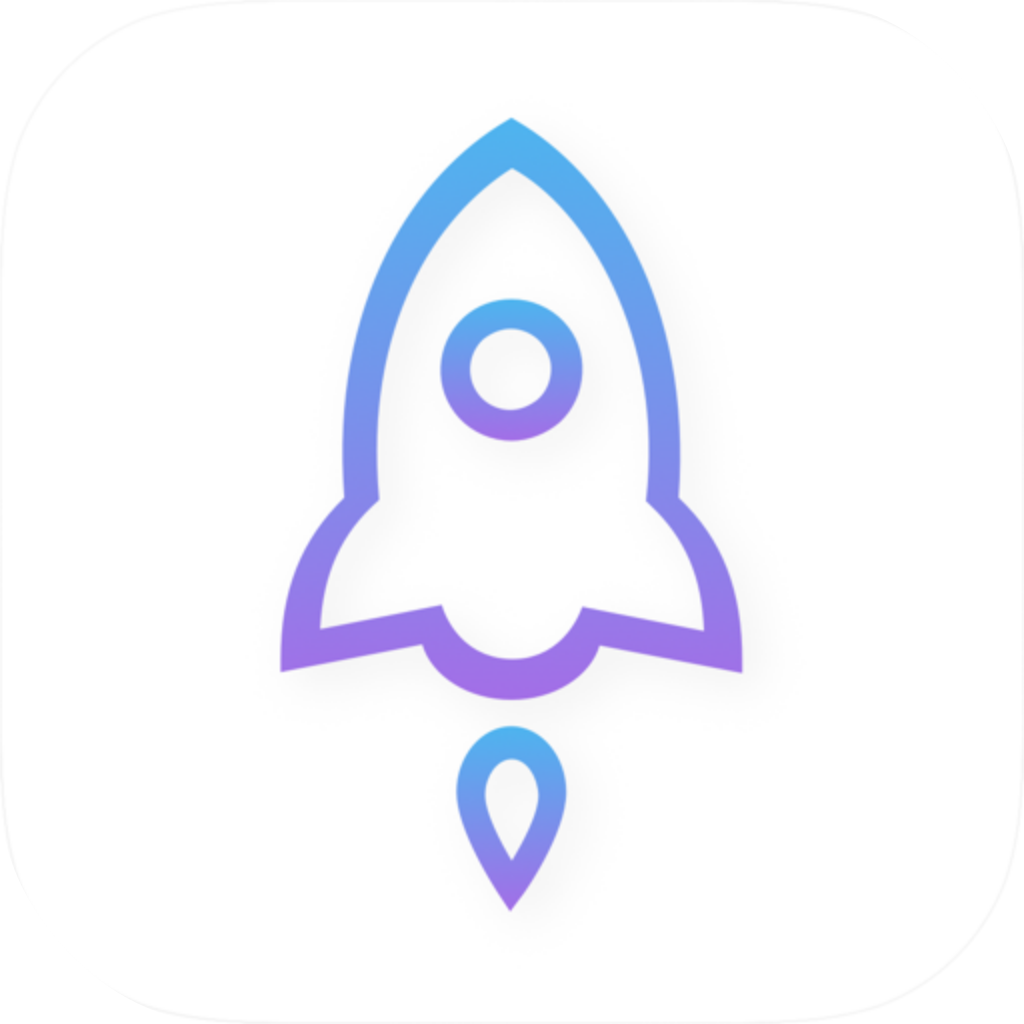
Don't rely on search snippets, promotional images, or payment screenshots sent by someone else. They may show only a name and icon, without proving which app you're about to buy. Verify all three identifiers against the same product page.
2. Check the product page before buying
The steps below use an iPhone or iPad as an example. App Store labels can vary by system language and version, so look for the relevant function rather than relying on a button's exact location. Check the App Store page for system requirements.
-
Open the download page
Open this site's download page and choose the iPhone / iPad option. Once the App Store opens, stay on the product page and verify the details before confirming a purchase.
-
Verify the developer
Read the developer information on the product page. The full name should be Shadow Launch Technology Limited. If the name is truncated, expand the relevant section before deciding.
-
Check the product link
Use the App Store product page's share option to copy the link, then view the full text on your device. The app ID should be
id932747118; don't rely only on the presence of the word Shadowrocket in the link. -
Compare the official icon
Compare the product page icon with the official icon shown here. If they look noticeably different, go back and verify the developer and app ID. Don't proceed based on a vaguely similar rocket shape.
-
Confirm which app you're buying
Before completing the App Store flow, make sure the app named in the purchase prompt matches the product you just verified. If the prompt takes you to a different app, cancel and reopen the correct product page.
3. Separate app costs from connection services
Shadowrocket has two ways to get it: the iPhone / iPad version is available from the App Store for a one-time $2.99 purchase; the Mac (Apple silicon and Intel), Windows, Android, and Linux versions are free. For each platform, choose the relevant option on this site's download page; desktop and Android installers are provided there.
A free version on one platform doesn't prove an app's identity, and a payment prompt doesn't prove the product is correct. Confirm the platform, then the source, and finally the product details. The App Store page for your account shows the applicable currency and checkout details.
- Getting the app: Installing Shadowrocket does not provide working remote connection settings.
- Existing subscription: You manage your own subscription; check its validity, availability, and connection details separately.
- Connection settings: Server details in Home and rules in Config serve different purposes. A purchase receipt cannot replace either one.
- Restoring a purchase: Before reinstalling, check the App Store account currently in use and your purchase history. Don't assume you need to buy again just because you changed devices.
Bottom line: verify the app before considering the cost
If you haven't matched all identity details to the same product, stop before paying. If the product is verified but the connection fails, troubleshoot the configuration instead of buying the app again to try to fix the network.
4. What installed-app screens can't tell you
After opening the app, use Home to view connections and their current status, Config to manage rule configurations, and Settings to adjust app preferences. These screens help you find your way around, but their appearance does not prove the app's identity. To verify what you installed, check the App Store product page and your purchase history.
A common mistake is to assume that “it won't connect” means “I installed the wrong app.” In fact, the Global Routing mode, selected connection, subscription status, and local network can all affect the result. The comparisons below explain Shadowrocket settings only; they do not verify the app's identity.
Config
RecommendedChoose Config under Home → Global Routing to route traffic according to the rules in the active Config. The outcome depends on the rules, their order, and the selected policy; not every request necessarily goes through a proxy.
Use when: You already have a working configuration and want to follow its rules in everyday use.
Direct
Choose Direct under Home → Global Routing to send traffic directly. Some destinations may be unreachable in this mode. That does not indicate a problem with the app's identity or prove whether the selected proxy server is working.
Use when: You want to check how the device connects directly over its local network.
Proxy
Choose Proxy under Home → Global Routing to test the currently selected connection using proxy mode. This can help isolate effects from rule-based routing. Switching modes won't fix incorrect server details or an unavailable remote service.
Use when: You already have working connection details and want to temporarily rule out routing rules as the cause.
For example, DOMAIN-SUFFIX,example.com,DIRECT in Config sends requests matching that domain suffix to DIRECT. If a request doesn't use the proxy, check which rule matched before questioning your purchase. FINAL applies when none of the preceding rules match; save the original configuration before making changes.
- To check automatic connection behavior, go to Settings → On Demand and review the conditions. Whether it triggers automatically does not indicate whether the app is genuine.
- When checking a subscription, first make sure your existing subscription is valid, then review the import result. Don't expose the full subscription URL in screenshots.
- For further troubleshooting, note the current Global Routing mode, destination domain, and error message, then read the troubleshooting guide.
5. What to do if you bought the wrong app or still have questions
If you completed a purchase, first gather information that identifies what you bought: the app name, developer, product link, and the item in your purchase history. Don't rush to delete all records, and don't enter subscription details or other sensitive information into an app whose identity is unclear.
The icon looks similar, but the developer is different. Can I still buy it?
Cancel the purchase. Reopen the iPhone / iPad product page from this site's download page, then verify Shadow Launch Technology Limited and app ID 932747118. A similar icon does not make up for a mismatch in developer information.
The link title says Shadowrocket. Is that enough to verify it?
No. Copy the actual product link and check the apps.apple.com domain and id932747118. Link text in a chat can differ from the actual address, so open the product page and verify the developer too.
I bought the wrong app. What should I do?
Check the purchase history in your App Store account to confirm the transaction, then follow Apple's purchase support or refund process. Apple determines refund eligibility and the outcome. Don't send payment details to someone you don't know.
I bought it before. Why am I seeing a purchase prompt again?
First check which account is currently signed in to the App Store, then confirm that Shadowrocket appears in that account's purchase history. Verify the product ID before restoring the download. Being signed in to an account on your device doesn't necessarily mean it's the account used for App Store purchases.
6. What to do after verification
App identity, purchase status, and connection status are separate things. Handle them in order to avoid blaming the app source for a network problem or paying before you've verified the product. When saving screenshots for your records, hide account details, order information, server credentials, and subscription tokens.
- First, verify that the developer is Shadow Launch Technology Limited, the app ID is 932747118, and the icon matches the official one.
- Next, confirm how to get the app for your platform by checking the App Store purchase history or the platform options on this site's download page.
- After installation, use the user guide to review Home, Config, and Settings, and use your own connection details.
- If the connection has problems, keep the error message and check your subscription, Global Routing mode, and rules separately. A successful or failed connection does not establish the app's identity.
On a Mac, choose the installer for Apple silicon or Intel, as shown in About This Mac. Choose the correct platform option for Windows, Android, or Linux as well. The app ID check in this guide applies to the App Store product page; desktop installer filenames are not App Store app IDs.